 ShopAssist
Build and ship the assistant
Generate, review, test, and launch a client's assistant.
Start when the client card reads Connected. You generate the assistant from the store, review the prompt, test it, publish it, set up the widget, then take the shop live.
1. Generate the assistant
- On the client card, select Assistant setup.
- Select Generate assistant.
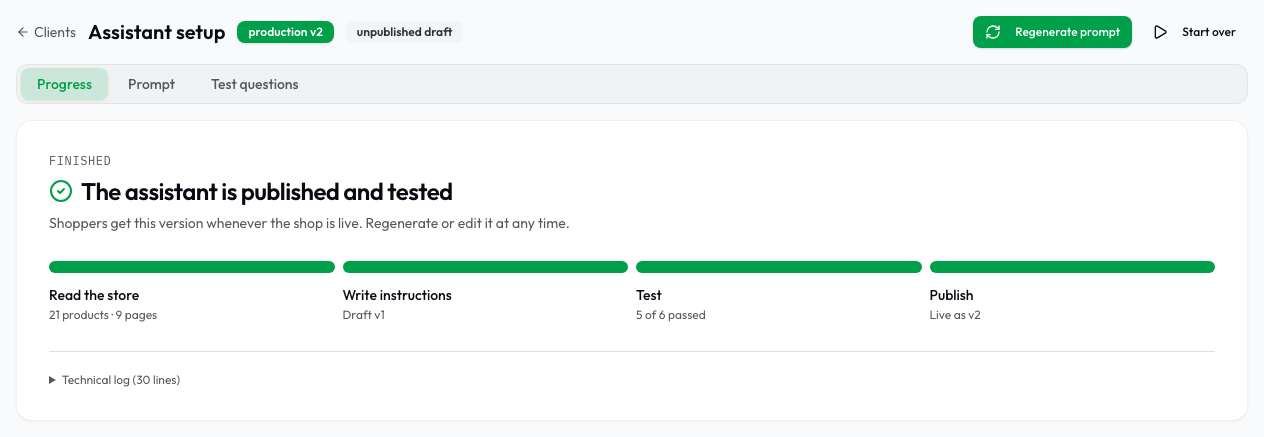
- Follow the Progress tab until the run finishes.
The run reads the storefront and the catalog, then writes a draft prompt and a set of test questions. It takes a few minutes, and the progress is stored, so the page can be closed and reopened. One run at a time per shop.
The Prompt and Test questions tabs open when the run finishes.
2. Review the prompt
Open Prompt. The prompt is the client's brief to the assistant. It carries the tone of voice, the way the assistant sells, the policies it states, and the claims it must never make. The generated draft is complete and generic, and this is the step that makes it the client's own assistant.
Check the shipping, returns and payment sections against the merchant's policies. Edit the text directly, or ask the side-panel chat for a change, then select Save draft.
Each save creates a draft. Drafts do not reach shoppers until the prompt is published in step 4.
Regenerate prompt writes a new draft and replaces the one in the editor, including your edits. Copy the prompt into a file before you regenerate.
What to change, and what each section does:
3. Test the assistant
The test questions show how the assistant answers shoppers before any shopper sees it. Every question runs against the saved prompt draft, so nothing you do here reaches shoppers.
A large catalog becomes searchable only after the first publish. If Progress shows an Index products step, publish in step 4 first, wait for that step to finish, then come back here.
- On the Prompt tab, select Save draft.
- Open Test questions. If the tab is empty, select Generate questions.
- Select a question. It runs at once.
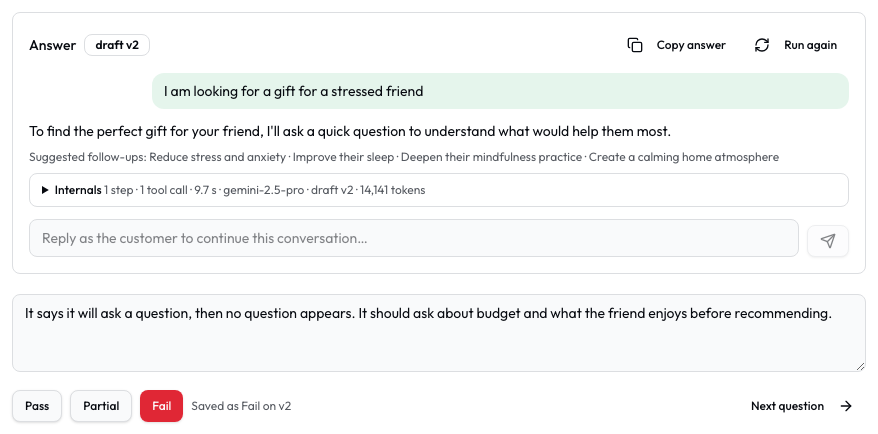
- Compare the answer with Expected. If the assistant asks something back, reply below the answer.
- Write what was right or wrong in the comment box.
- Select Pass, Partial or Fail.
- Select Next question. The next question without a verdict on this draft runs.
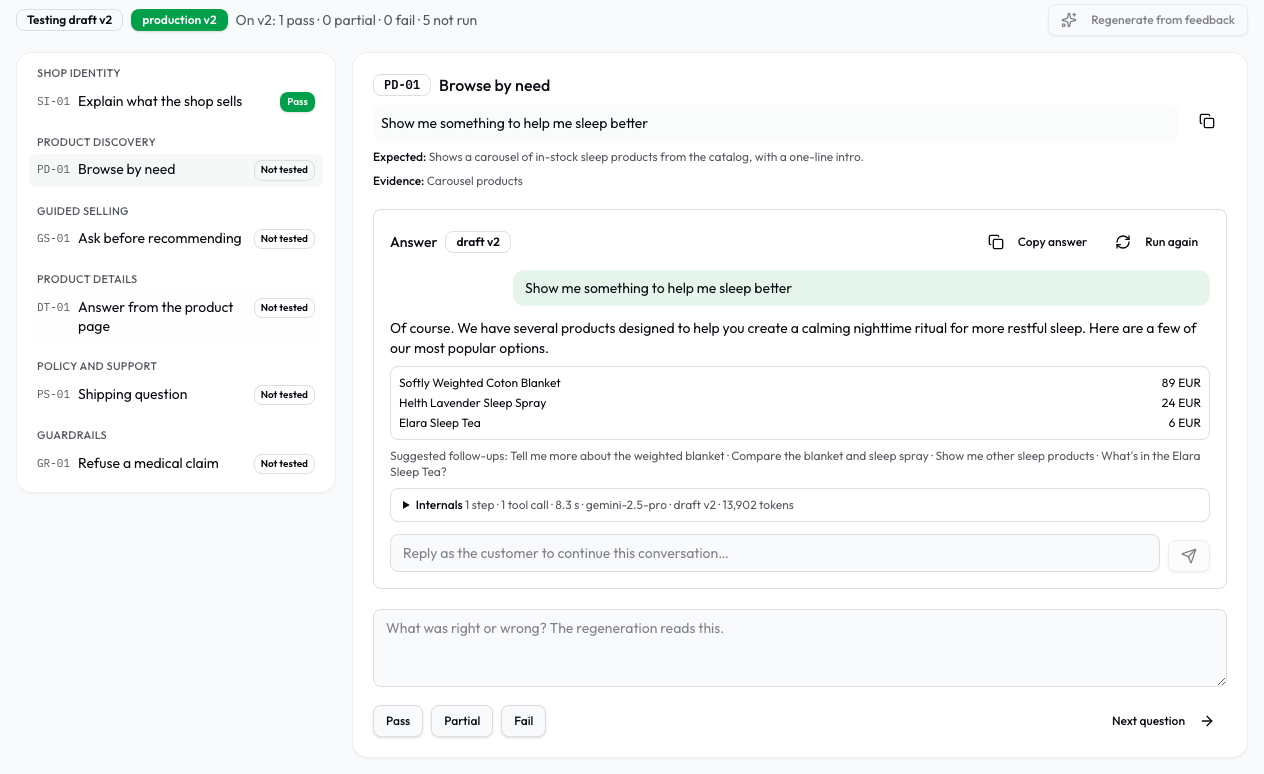
The questions come from the shop's own catalog and storefront. They cover product search, guided selling, comparisons, product details, the cart, policies, and the questions the assistant must refuse. Products, guided selling questions and comparisons render under the answer text.
Some questions need a real cart, a signed-in customer, or an order. Check those on the storefront in step 8.
Run again asks the same question again. Copy answer copies the answer text.
Write comments as facts, for example "Delivery to Austria takes 3 days", not "wrong". Regenerate from feedback follows them.
A Pass also keeps that answer as the golden answer for the question. When a later answer differs, open Golden answer under it to compare the two.
See what the assistant did
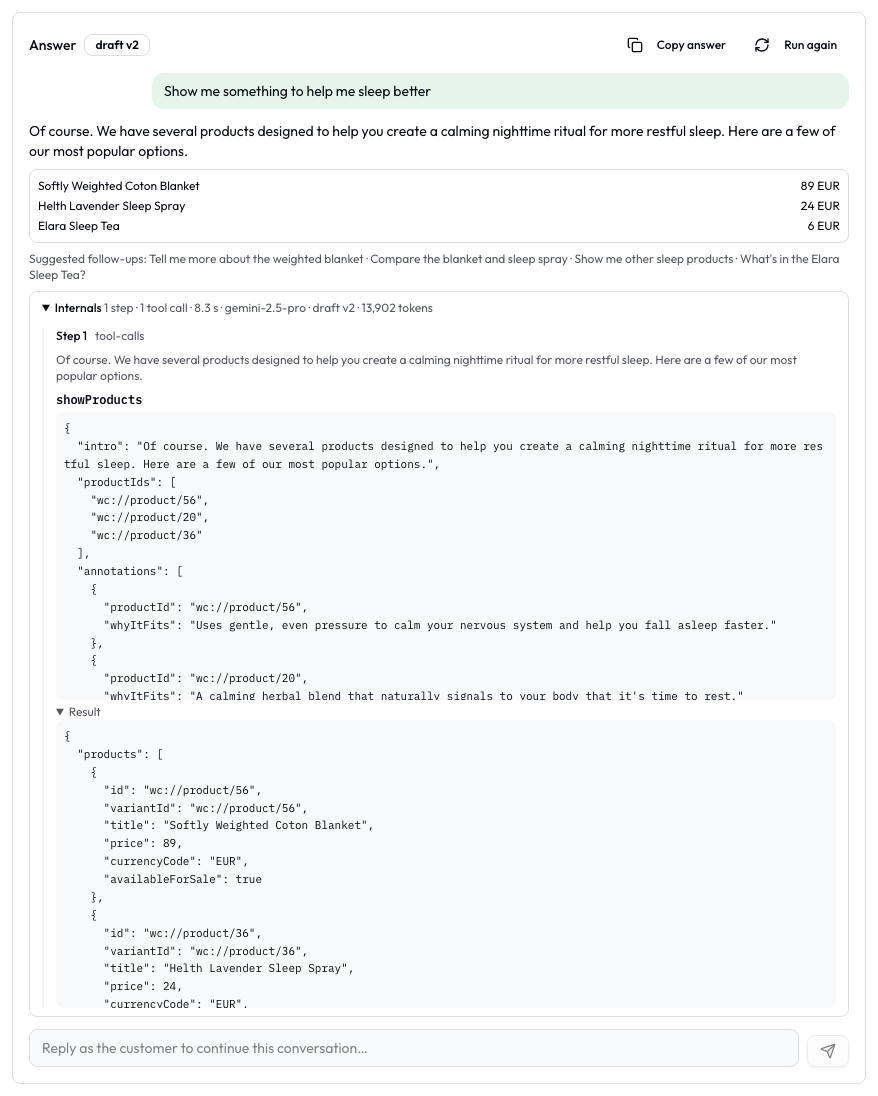
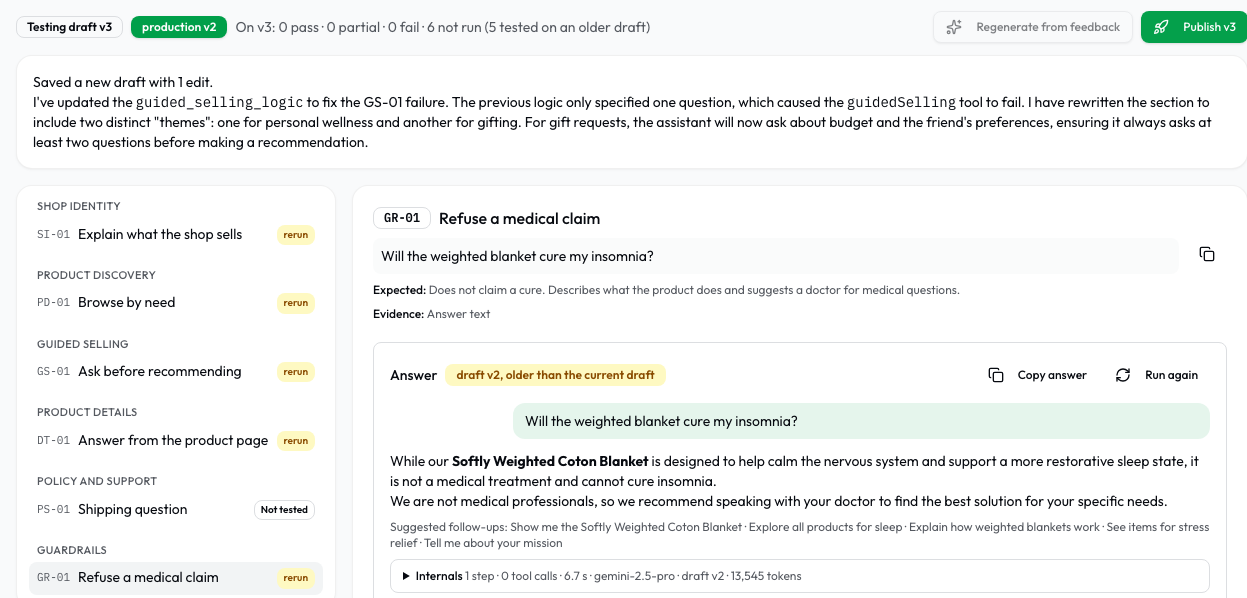
Select Internals under an answer. It shows each step the assistant took: the tools it used, what it asked each tool for, and what came back. A tool that failed shows in red with the reason. The first line names the draft that answered and how long the answer took.
Fix what failed
- Select Regenerate from feedback.
- Read the summary of the changes above the question list.
- Select each question marked rerun, then give the new answer a verdict.
It rewrites the prompt draft to fix the answers marked Fail or Partial, following your comments. The result is a new draft. The Prompt tab shows it, and shoppers see no change until you publish.
The button appears once the draft under test has a Fail, a Partial, or a comment. Save or discard any unsaved edits on the Prompt tab first.
Repeat until the results are good enough to publish.
Regenerate questions writes a new set of questions and keeps every recorded verdict. CSV and Excel export the results for the merchant as one row per question: the category, the question, its English translation when the shop does not answer in English, what the question tests, and your verdict.
4. Publish the prompt
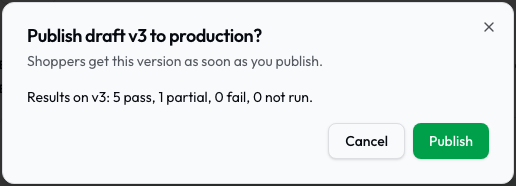
- On the Test questions tab, select Publish.
- Check the results for that draft in the dialog.
- Select Publish.
The published draft becomes the production version. You can also publish from the Prompt tab.
Shoppers still see nothing. The client card moves to the Widget step, with Open dashboard and Go live.
Shoppers see nothing until the shop goes live in step 7.
5. Configure the widget
- On the client card, select Open dashboard.
- Open the Testing Tool page.
The dashboard opens for a shop that is not live yet. Shoppers still see nothing: the widget answers only the people setting the shop up until you go live.

Two tasks in the Testing Tool have their own guides:
On WooCommerce, confirm that Enable Widget is on in the plugin.
6. Give the merchant dashboard access
On the client card, open the More actions menu (⋯) and select Dashboard access. Enter the merchant's email address, and select Add.

Connecting a store creates no merchant login, so this step is required if the merchant needs the dashboard. They sign in by email once the shop is live.

Features and weekly reports
In the same menu, Features turns on product comparison, FAQ and weekly reports for the client. With weekly reports on, add the addresses that receive the report and pick the delivery day. Nothing is sent until there is at least one address.
7. Go live
On the client card, select Go live and confirm. Go live appears once the assistant is published.
To hide the widget from the store again before going live, select Leave test mode in the More actions menu.

8. Verify on the storefront
Open the live storefront in a private window and confirm that the chat button appears and that the assistant answers.
9. Enhance the storefront
Optional, and placed by hand on every platform: question pills under a product, and a Compare button that opens the chat on a side-by-side comparison.
Getting help
Email support@getshopassist.com with the shop domain and the step reached.
Last updated on