 ShopAssist
Enhance ShopAssist - Magento
Question pills and Compare on a Magento or Mage-OS store.
Read Enhance ShopAssist first. The pills need questions in the client dashboard, and Compare needs the shop-level switch from support.
Both features are settings of the ShopAssist module, version 1.2.0 or newer. Open Stores → Configuration → ShopAssist → AI Shopping Assistant.
Every setting can be changed per website and per store view, so a store view can use its own heading, label and colors.
Question pills
- Open the Ask ShopAssist group.
- Set Show question pills on product pages to Yes.
- Set the appearance to match the store. At least set Pill color to the merchant's brand color.
- Select Save Config, then refresh Configuration and Page Cache in System → Cache Management.
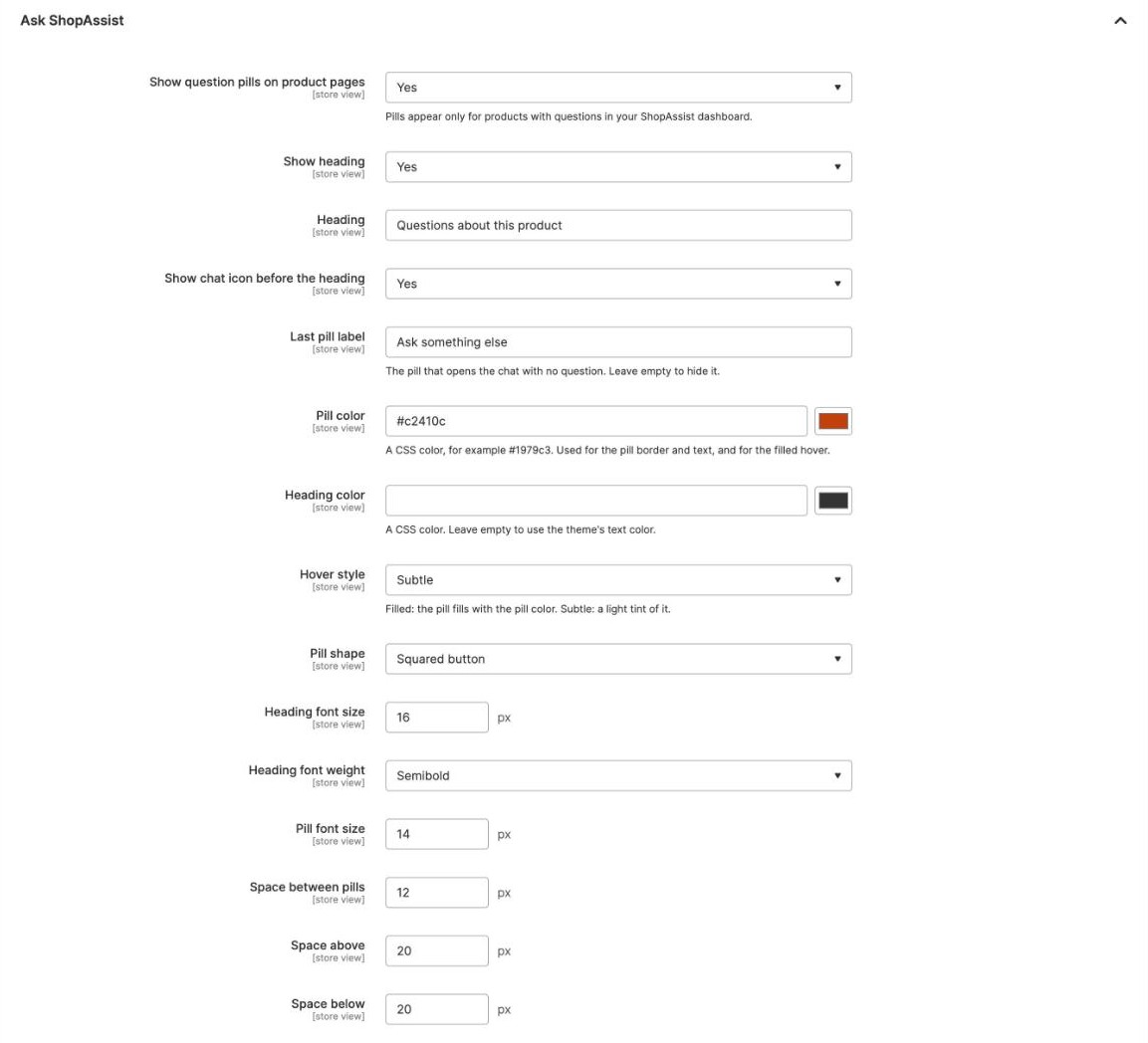
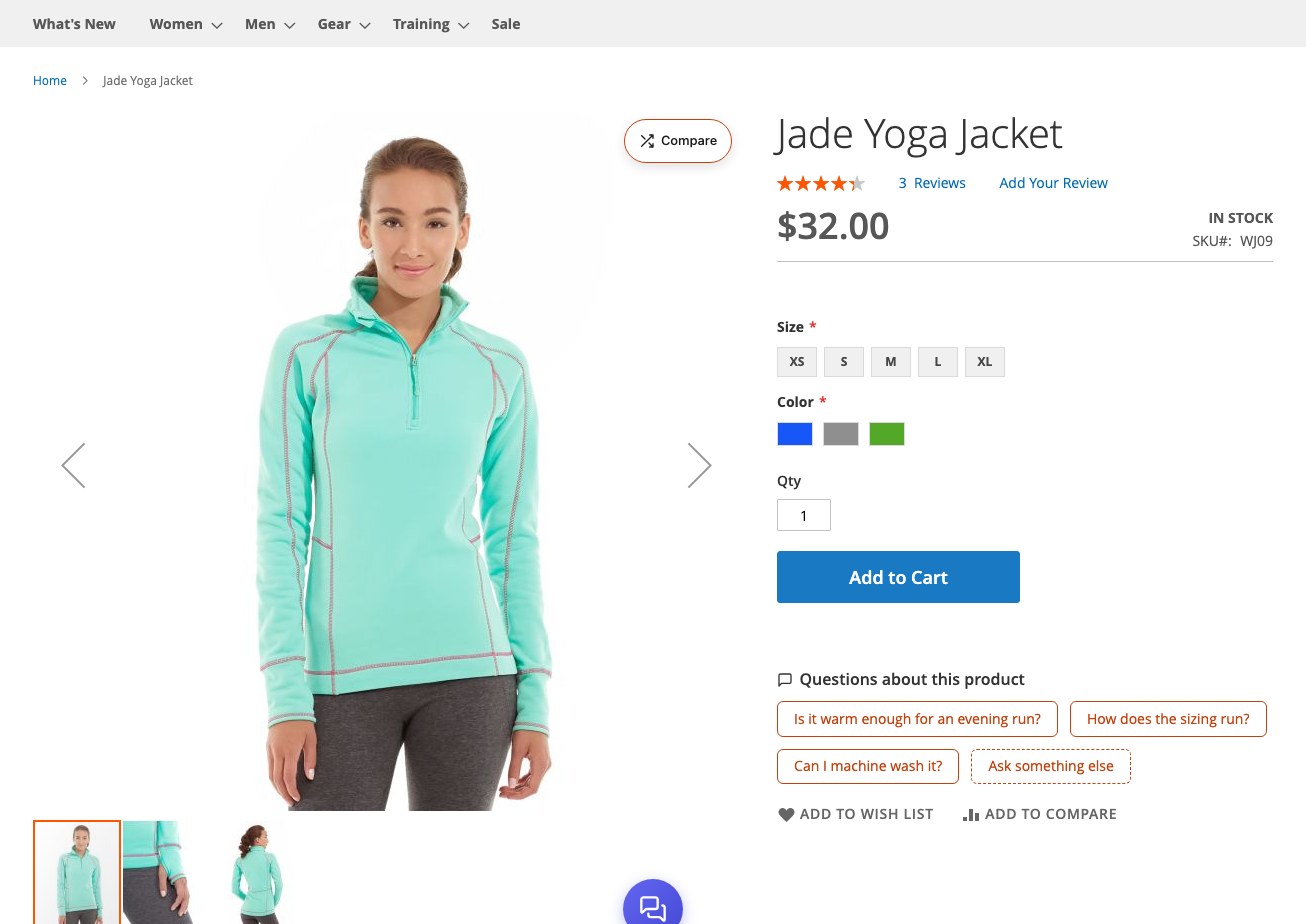
This example changes five values from the defaults: an orange Pill color, the chat icon, Subtle hover, Squared button and a 12px gap. The product page below shows the result.
| Setting | What it does | Default |
|---|---|---|
| Show heading | Shows the line above the pills | Yes |
| Heading | The text of that line | Questions about this product |
| Show chat icon before the heading | A small chat bubble before the heading | No |
| Last pill label | The pill that opens an empty chat. Leave it empty to hide that pill | Ask something else |
| Pill color | Border and text of the pills, and the fill on hover. Pick it with the color picker, or type any CSS color, such as #1979c3 | #1979c3, the Luma blue |
| Heading color | Color of the heading. Color picker or any CSS color | The theme's text color |
| Hover style | Filled fills the pill with its color. Subtle shows a light tint | Filled |
| Pill shape | Rounded pill, or Squared button with small corners | Rounded pill |
| Heading font size | In pixels | 16 |
| Heading font weight | Normal, Medium, Semibold or Bold | Semibold |
| Pill font size | In pixels | 14 |
| Space between pills | In pixels | 8 |
| Space above and Space below | Space around the whole block, in pixels | 20 and 20 |
A color that is not a plain CSS color is ignored and the default is used.
The Magento switch only places the container. What fills it comes from the client dashboard:
- In the dashboard, open FAQ and generate questions for the products.
- Switch the pills on for each product that should show them. A product with its pills off stays hidden on the storefront, even with questions.
The pills then appear on that product's page, under the add-to-cart form. The container stays hidden on every other product, so switching the module on changes nothing for a product you have not prepared.
A click opens the chat with the product name and the question, for example Jade Yoga Jacket: Is it warm enough for an evening run? When the question has a stored answer in the dashboard and the pill starts the conversation, the shopper gets that answer word for word. Otherwise the assistant answers from the catalog. Ask something else opens an empty chat.
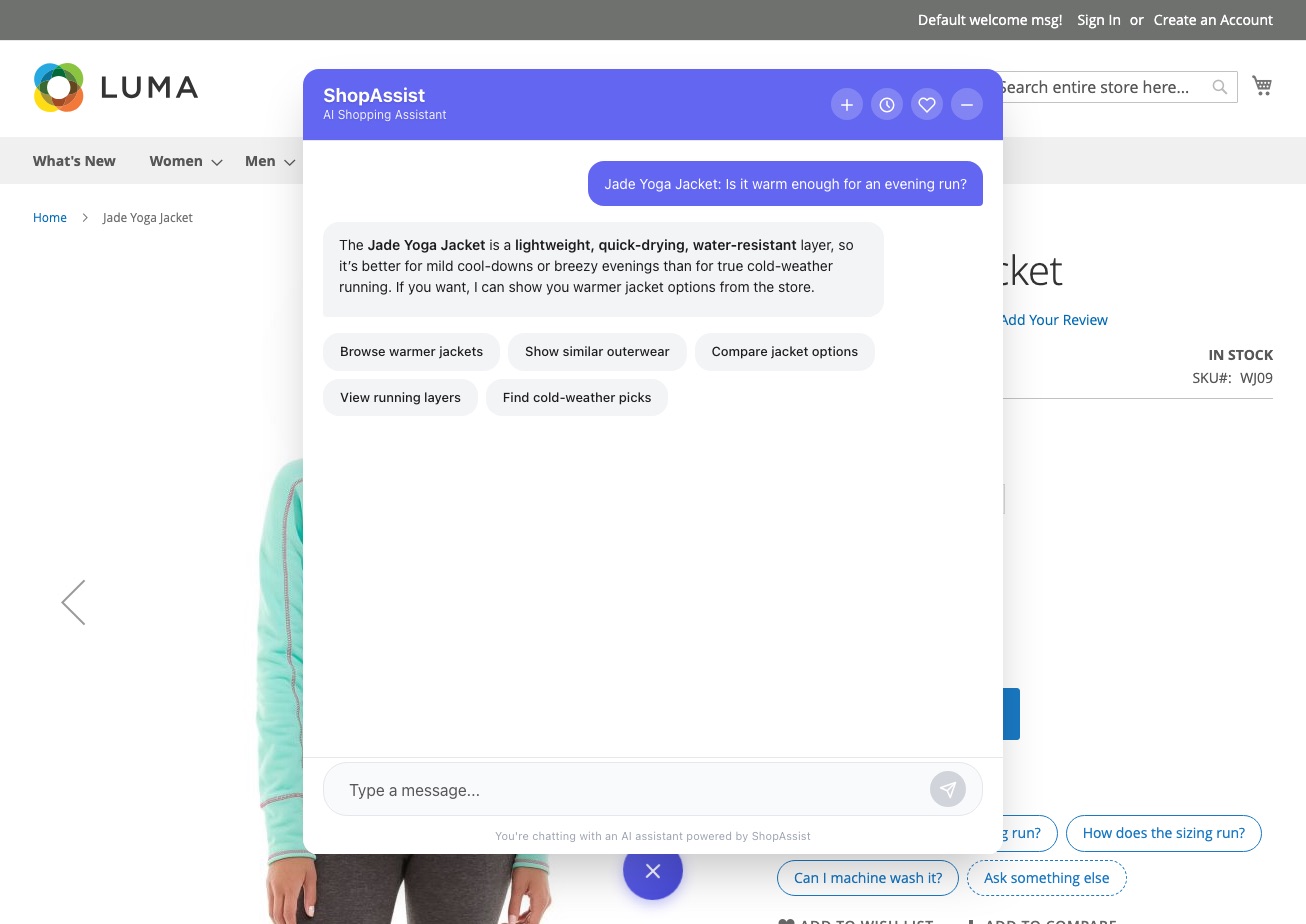
A shopper can click a pill before the chat has finished loading, because the module loads the chat only after the page. The click is kept, and the chat opens with that question as soon as it is ready.
The first time you open FAQ in the dashboard of a Magento shop, it can take around ten seconds. ShopAssist reads the whole catalog from the store's GraphQL API and keeps it for three hours, so later visits are fast. Ask support to turn on product sync for the shop if every first visit is slow.
The block is shopassist.questions in the catalog_product_view layout. To
place it somewhere else on the page, move it in the theme's
Magento_Catalog/layout/catalog_product_view.xml:
<move element="shopassist.questions" destination="product.info.main" after="product.info.price"/>Compare
- Open the Compare group.
- Set Show Compare buttons to Yes.
- Set the label, color and placement to match the store.
- Select Save Config, then refresh the caches as for the pills.
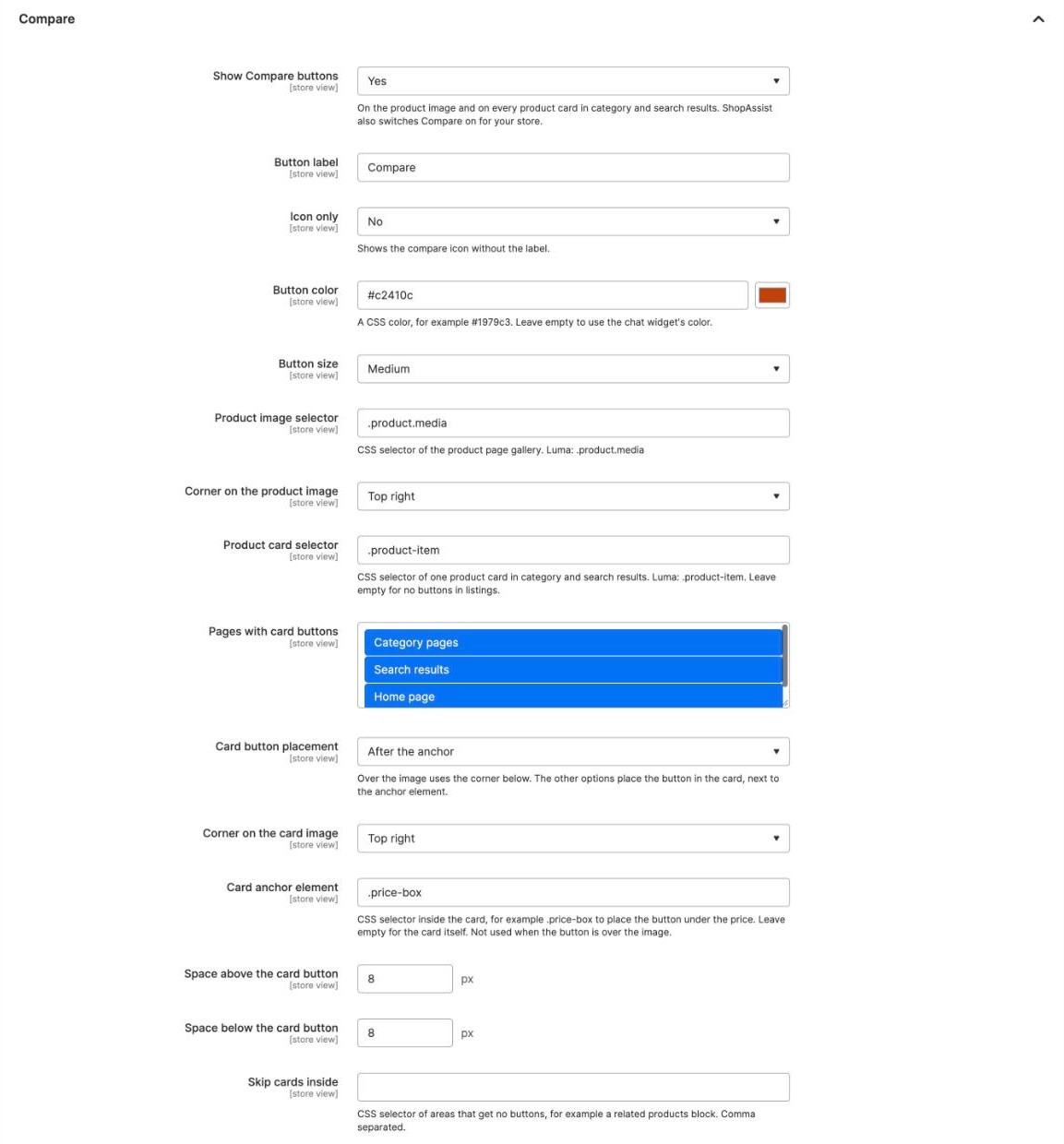
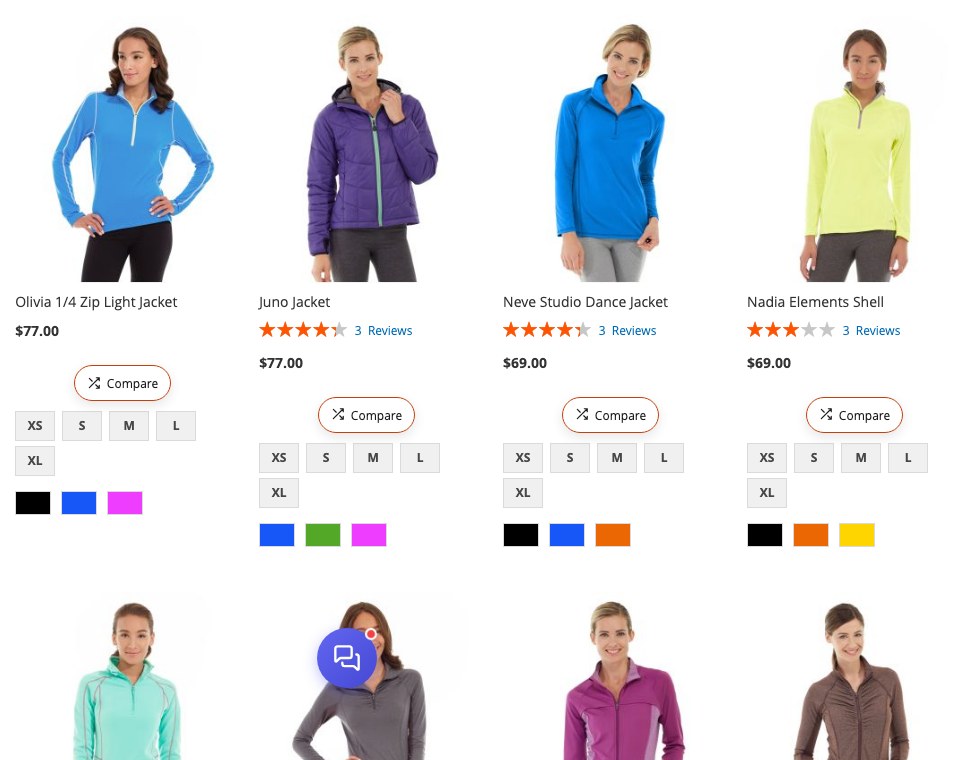
This example uses an orange Button color, Medium size, the home page as a third listing page, and After the anchor with .price-box, which puts the card button under the price instead of over the photo.
| Setting | What it does | Default |
|---|---|---|
| Button label | Text on the button. It changes to "Selected" and "Compare with" during a listing comparison | Compare |
| Icon only | Shows only the compare icon, without the label | No |
| Button color | Color picker or any CSS color | The chat widget's color |
| Button size | Small, medium or large | The widget's default |
| Product image selector | The gallery on the product page. The button sits in its corner | .product.media |
| Corner on the product image | Top right or top left of the photo | Top right |
| Product card selector | One product card in a listing. Empty means no buttons in listings | .product-item |
| Pages with card buttons | Category pages, search results, the home page, in any combination | Category pages and search results |
| Card button placement | Over the product image, in a corner. Or in the card, next to the anchor element: inside it at the end or start, or after or before it | Over the product image |
| Corner on the card image | Top right or top left of the photo, when the button is over the image. To put it lower in the card, use a placement next to the anchor element | Top right |
| Card anchor element | A selector inside the card that the button is placed next to, such as .price-box for "under the price". Empty means the card itself | Empty |
| Space above the card button and Space below the card button | Space around the button when it sits in the card, in pixels | 8 and 8 |
| Skip cards inside | Areas that get no buttons, such as .block.related for the related products block. Comma separated | Empty |
The button appears on the product image and on every product card in category and search results. It needs Compare switched on for the shop as well, see Before you start. With only the Magento setting on, no button appears.
The two places work differently:
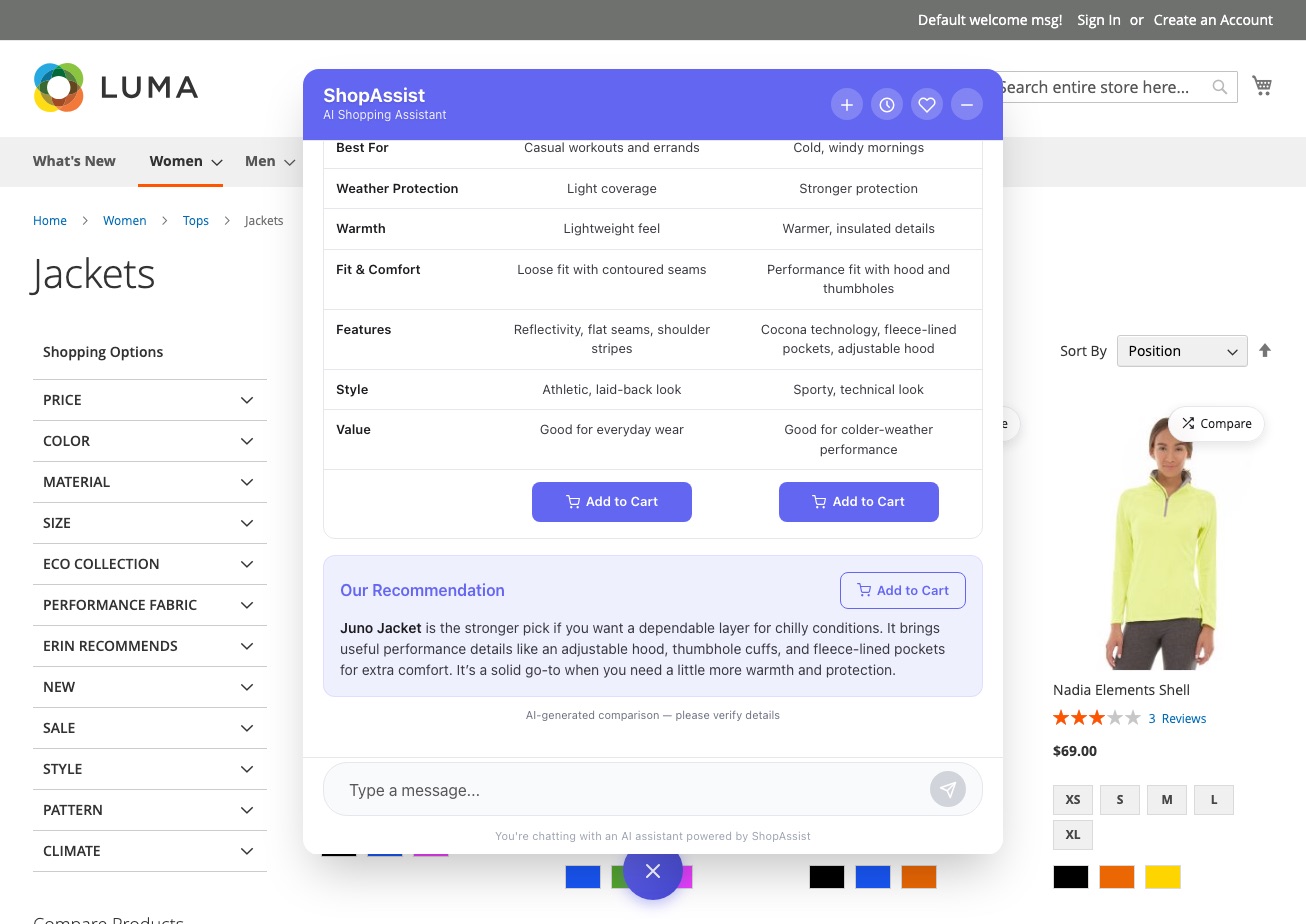
- On a product page, Compare opens a panel of similar products. The shopper picks one, and the chat opens with the two side by side and a recommendation.
- In a listing, the first click marks that card Selected, and every other card's button changes to Compare with. A click on a second card opens the comparison. Clicking the selected card again clears it.
The module tells the widget which product a product page shows, so that button appears without a lookup. On Luma-style cards the widget reads the product from the card itself. On other cards it asks the store's GraphQL API once per card.
The two selectors are set for Luma and for themes built on it. On another theme, set Product image selector and Product card selector to that theme's markup.
A card must contain a link to the product page. To skip the per-card request, it
also needs an element with the id product-item-info_<product id> or a
data-product-id attribute, as Luma cards have.
Troubleshooting
| Symptom | Cause | Resolution |
|---|---|---|
| Compare on the product page but not in listings | The theme does not use Luma's card markup | Set Product card selector to the theme's card element |
| Settings saved, nothing on the storefront | The page cache still serves the old pages | Refresh Configuration and Page Cache in System → Cache Management |
| For pills that do not appear or a missing Compare button on every platform, see the | ||
| shared troubleshooting. |
Last updated on