 ShopAssist
Enhance ShopAssist - WooCommerce
Question pills and Compare on a WooCommerce store.
Read Enhance ShopAssist first. The pills need questions in the client dashboard, and Compare needs the shop-level switch from support.
Question pills
Nothing places the pills automatically. All three methods below render the same pills, so use the one that matches how the store is built.
Shortcode
For the Classic Editor, page builders and templates. On a product page the shortcode detects the product, so it takes no arguments.
[shopassist_questions]Add product_id="123" to render one specific product's pills elsewhere.
Appearance is controlled by optional attributes: heading, show_heading,
show_icon, ask_label, show_ask_cta (the trailing "Ask something else"
pill), hover_style (filled or subtle), pill_shape (pill or button),
primary_color, text_color, heading_size, heading_weight, pill_size,
pill_gap, and the four padding_* values. The question settings on
WooCommerce → ShopAssist set the same values site-wide, and an attribute
overrides them for one shortcode.
With no primary_color in the shortcode or the site-wide settings, the pills use
#6366f1, the ShopAssist accent, not the store's. Set it to the merchant's brand
colour.
Block
For a block or site theme. Open Appearance → Editor → Templates → Single Product, select +, search for ShopAssist, insert Ask ShopAssist, and save the template. The block sidebar has the content, typography and spacing options: heading, icon, the "Ask something else" pill, hover style, colour, font sizes, gap and padding. Pill shape and text colour are shortcode-only.
The block always uses the product whose page it renders on. Use the shortcode for a specific product elsewhere.
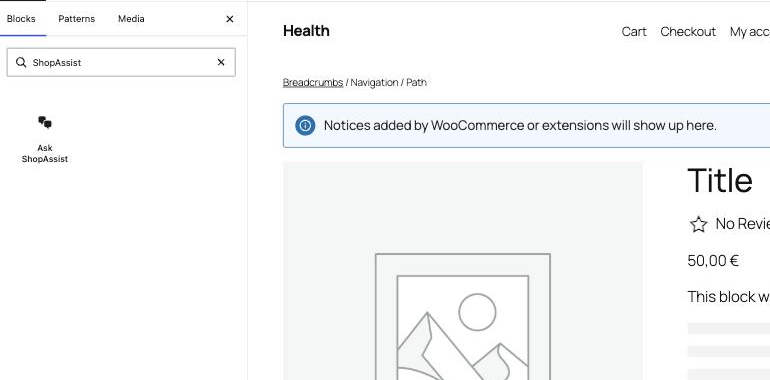
Elementor
Drag in the Ask ShopAssist widget. It is listed under WooCommerce in the widget panel, not General. Unlike the block, it can also be set to a specific product.
Compare
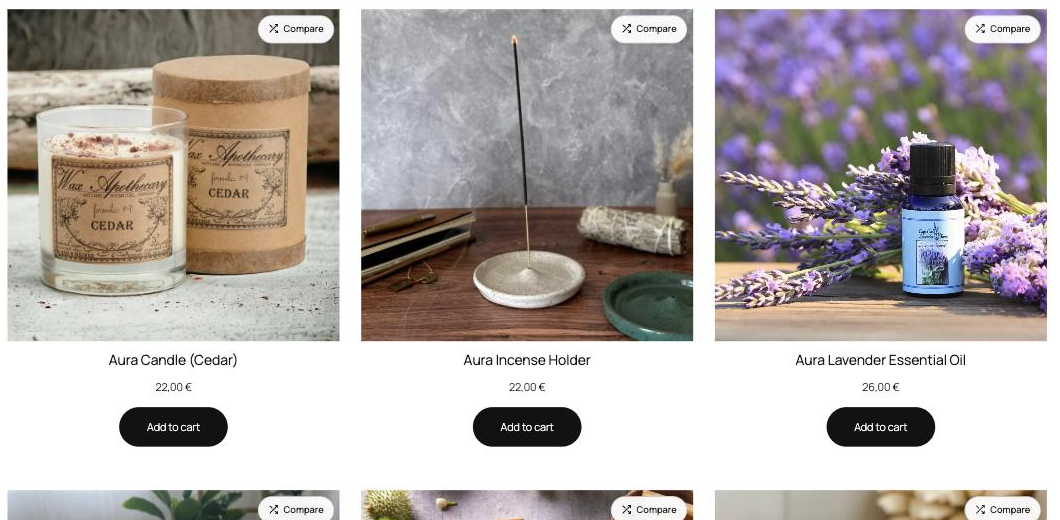
A shopper selects two products and the chat opens with a side-by-side comparison.
- Open WooCommerce → ShopAssist, section Product Compare.
- Select Enable Compare and save.
No block or shortcode is needed. The button is added to the product image and to every product card in category and search listings.
Buttons appear only on purchasable products. A variable product is compared as one product, not per variation.
The same section has optional settings: the label, colour and size, a separate corner for the product page and for listing cards, where the listing button sits (List Compare Button Placement and Button Anchor Element), the product-page and listing selectors, and List scan page types (category and search by default, product page and homepage optional).
Block themes using the Product Collection block need List Compare Button
Selector, set to the card element. On a stock block theme this is
li.wc-block-product. The default listing button hooks into the classic product
loop, which Product Collection cards do not use.
Troubleshooting
| Symptom | Cause | Resolution |
|---|---|---|
| Pills changed in the dashboard, storefront unchanged | The plugin caches the pills for five minutes | Wait five minutes and reload |
| Compare on the product page but not in listings | A block theme with Product Collection cards | Set List Compare Button Selector to the card element |
| Compare enabled but no button at all | The product is not purchasable, or the selectors do not match the theme | Check the product, then set the product-page and listing selectors |
For pills that do not appear or a missing Compare button on every platform, see the shared troubleshooting.
Last updated on