 ShopAssist
Enhance ShopAssist - PrestaShop
Question pills and Compare on a PrestaShop store.
Read Enhance ShopAssist first. The pills need questions in the client dashboard, and Compare needs the shop-level switch from support.
Both features come with the ShopAssist module and are on after the install. The switches are on the module's settings page, under Modules → Module Manager → ShopAssist → Configure:
- Question pills on product pages
- Compare buttons
Question pills
The module places a question block under the add-to-cart button of every product page. The block fills with the questions the client dashboard holds for that product, and stays hidden on products without any.
- In the client dashboard, open FAQ and select Generate all. ShopAssist writes questions and answers for every product.
- Switch the pills on for the products that should show them. To cover the whole catalog, set the Questions filter to products with questions and select Enable pills.
- Open a product page on the storefront. The questions appear under the add-to-cart button, in the theme's primary button color.
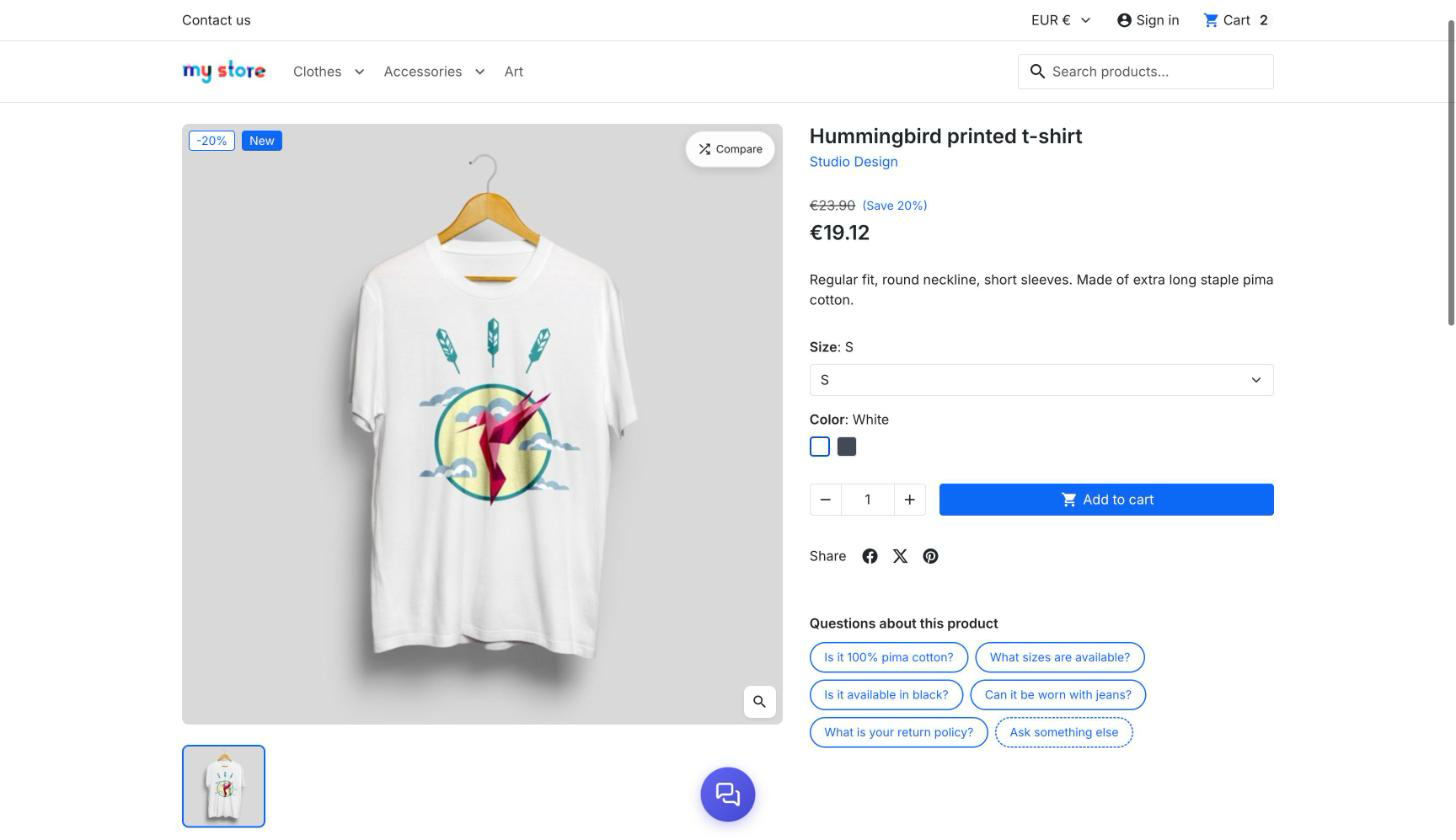
A click opens the chat with the product name and the question. When the question has a stored answer in the dashboard, the shopper gets that answer word for word. Otherwise the assistant answers from the catalog. Ask something else opens an empty chat.
A shopper can click a pill while the chat is still loading. The chat opens with that question as soon as it is ready.
The block sits in the displayProductAdditionalInfo hook. To move it within that
hook, open Design → Positions, find Product page additional info, and
drag ShopAssist to its place.
Compare
- Ask support to switch Compare on for the shop.
- On the module's settings page, check that Compare buttons is Yes.
The button appears in the corner of the product image and of every product card on category pages, search results and the home page.
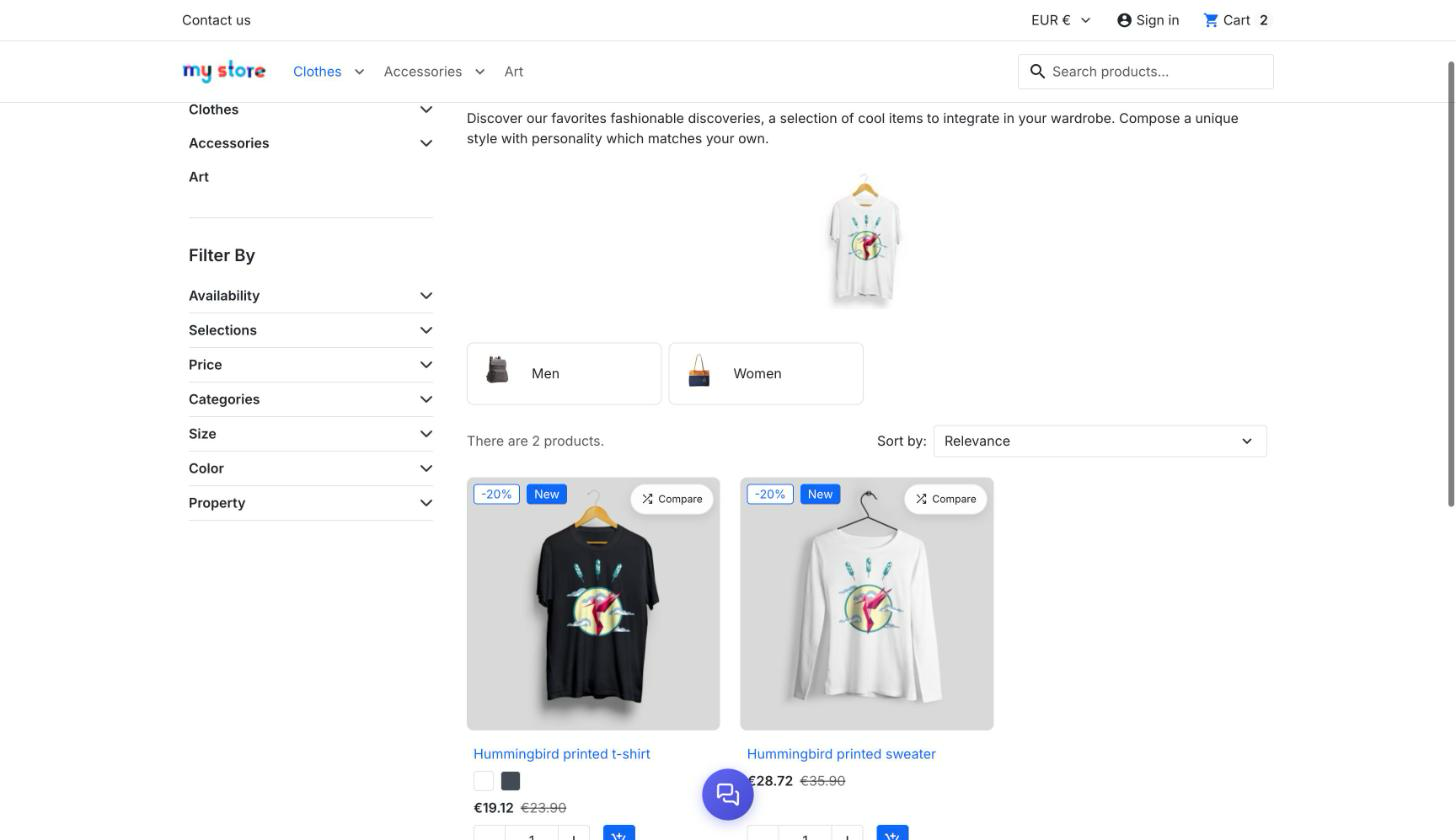
The two places work differently:
- On a product page, Compare opens a panel of similar products. The shopper picks one, and the chat opens with the two side by side and a recommendation.
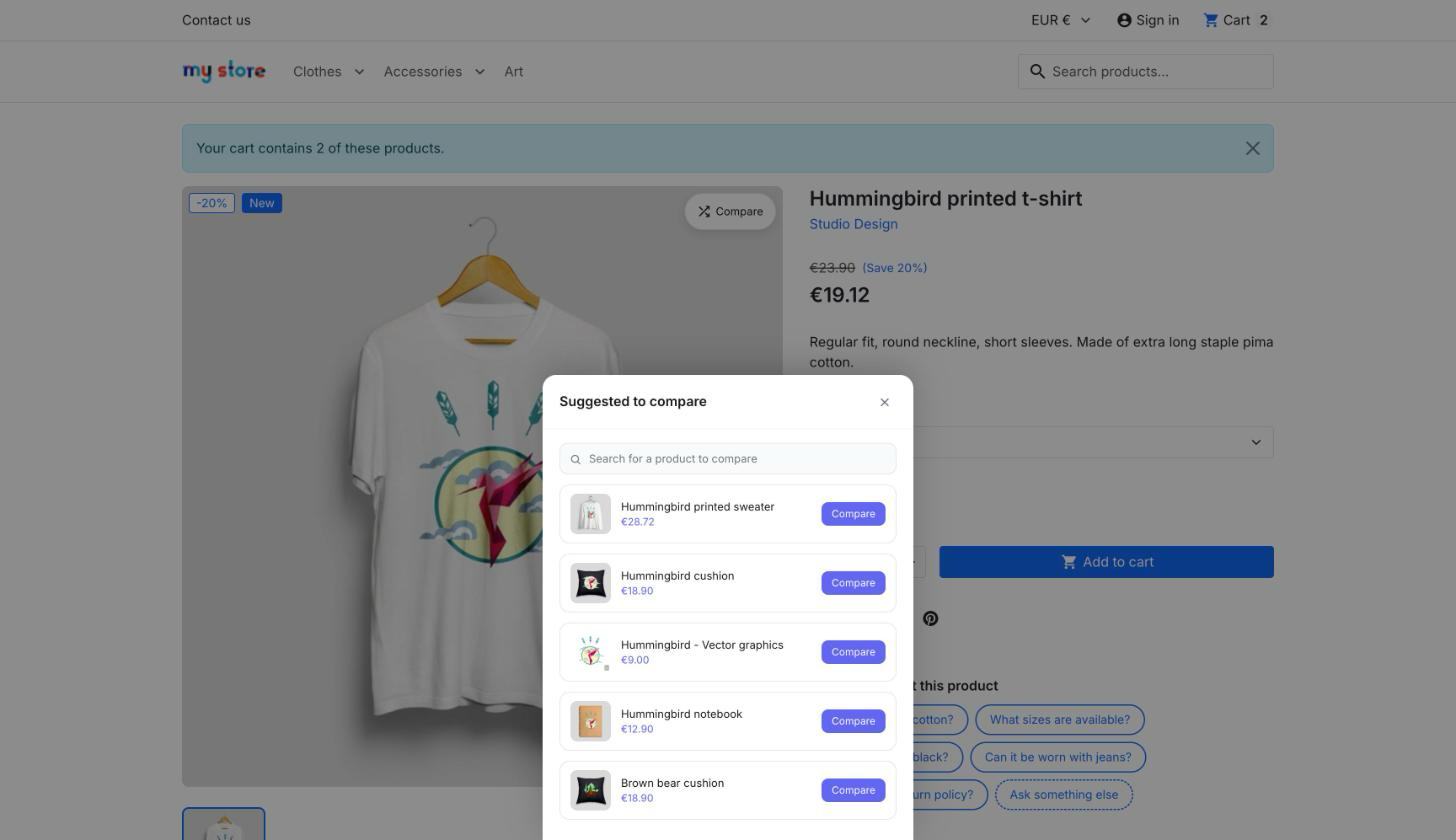
- In a listing, the first click marks that card Selected, and every other card's button changes to Compare with. A click on a second card opens the comparison. Clicking the selected card again clears it.
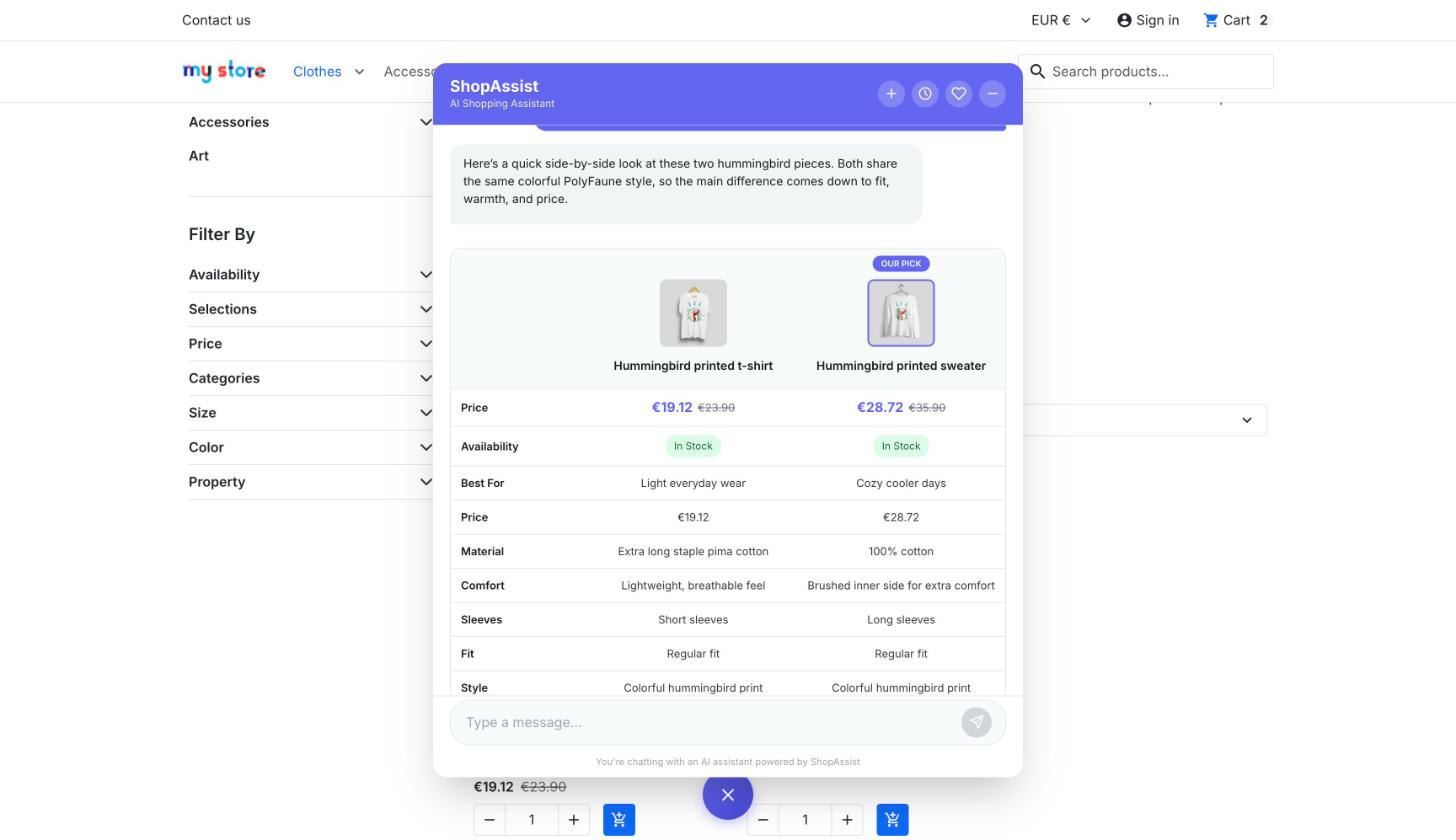
The module hands the widget the product of each product page, and the widget reads
each listing card's product from the card itself. Cards follow the Hummingbird
and Classic markup, article.js-product-miniature with data-id-product, which
themes based on either keep.
Troubleshooting
| Symptom | Cause | Resolution |
|---|---|---|
| Compare on the product page, plain cards in listings | The theme replaces the article.js-product-miniature card | Email support with the theme name |
| A product page shows no question block | The product has no questions, or its pills are off in the dashboard | Generate the questions, then switch its pills on |
| Pills in the wrong place on the product page | Another module sits above ShopAssist in the hook | Reorder it in Design → Positions |
For pills or a Compare button missing on every platform, see the shared troubleshooting.
Last updated on