 ShopAssist
Enhance ShopAssist - Shopify
Question pills and Compare on a Shopify store.
Read Enhance ShopAssist first. Both features have to be switched on under Features on the client card, and the pills need questions in the client dashboard.
Both come with the ShopAssist app, so there is nothing to install. The pills and the product-page Compare button are theme app blocks. Compare in listings is a setting of the Shop Assist app embed, the same embed that turns on the chat widget.
Question pills
- In the client dashboard, open FAQ and select Generate all. ShopAssist writes questions and answers for every product.
- Switch the pills on for the products that should show them. To cover the whole catalog, set the Questions filter to products with questions and select Enable pills.
- In the Shopify admin, open Online Store → Themes → Customize and select the Product template.
- Select Add block, look under Apps, and add Ask ShopAssist where the questions should appear. Under the add-to-cart button works on most themes. Save.
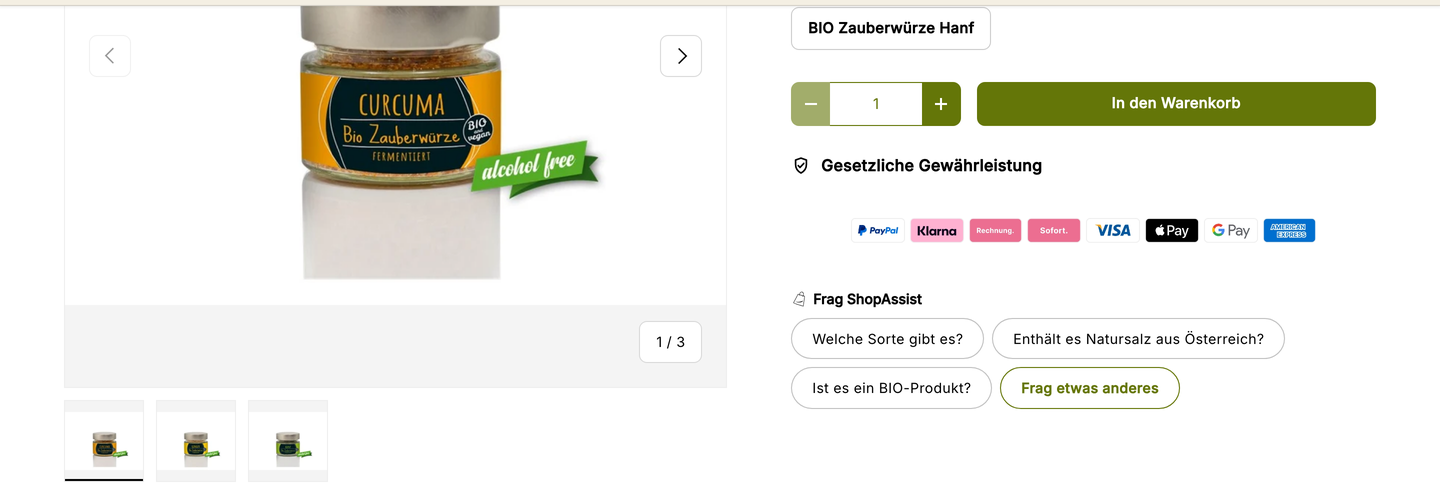
The block always uses the product whose page it renders on, and stays empty on products without questions. A click opens the chat with that question. When the question has a stored answer in the dashboard, the shopper gets that answer word for word. Ask something else opens an empty chat.
The block settings cover the heading, whether to show the heading and the icon, the label of the trailing "Ask something else" pill, whether to show that pill at all, and the language of the questions. Style holds the accent colour, hover style, font sizes and the gap between pills. Top and bottom spacing sit under Section padding, and Custom CSS takes anything else.
Heading and the pill label accept either a plain string or JSON keyed by
language, such as {"en": "Ask ShopAssist", "de": "Frag ShopAssist"}. Use the
JSON form on a multilingual store and leave Language on Auto-detect.
The accent colour defaults to #6B8E6E, not the store's. Set it to the
merchant's brand colour.
Compare
There are two places to add it, and they can be combined.
On the product page, either add the Compare button (PDP) block wherever the button belongs, or switch on Show on product pages in the app embed (below) to put it in a corner of the product image without a block. The block's settings are the label, an icon-only mode, button size, accent colour, alignment, and top and bottom padding. Leave the label blank to have it translated automatically, or give the same JSON-by-language form the pills accept.
In listings, open App embeds → Shop Assist and find the Comparison settings. Switch on Show on list pages to add a button to every product card on collection, search and homepage grids. Both switches are off by default. The same group sets the page types, the card and exclusion selectors, and the button's label, colour, size, corner and placement. Leave the card selector blank to have cards detected automatically.
The block's accent colour also defaults to #6B8E6E. Set it to the merchant's
brand colour.
The two places work differently:
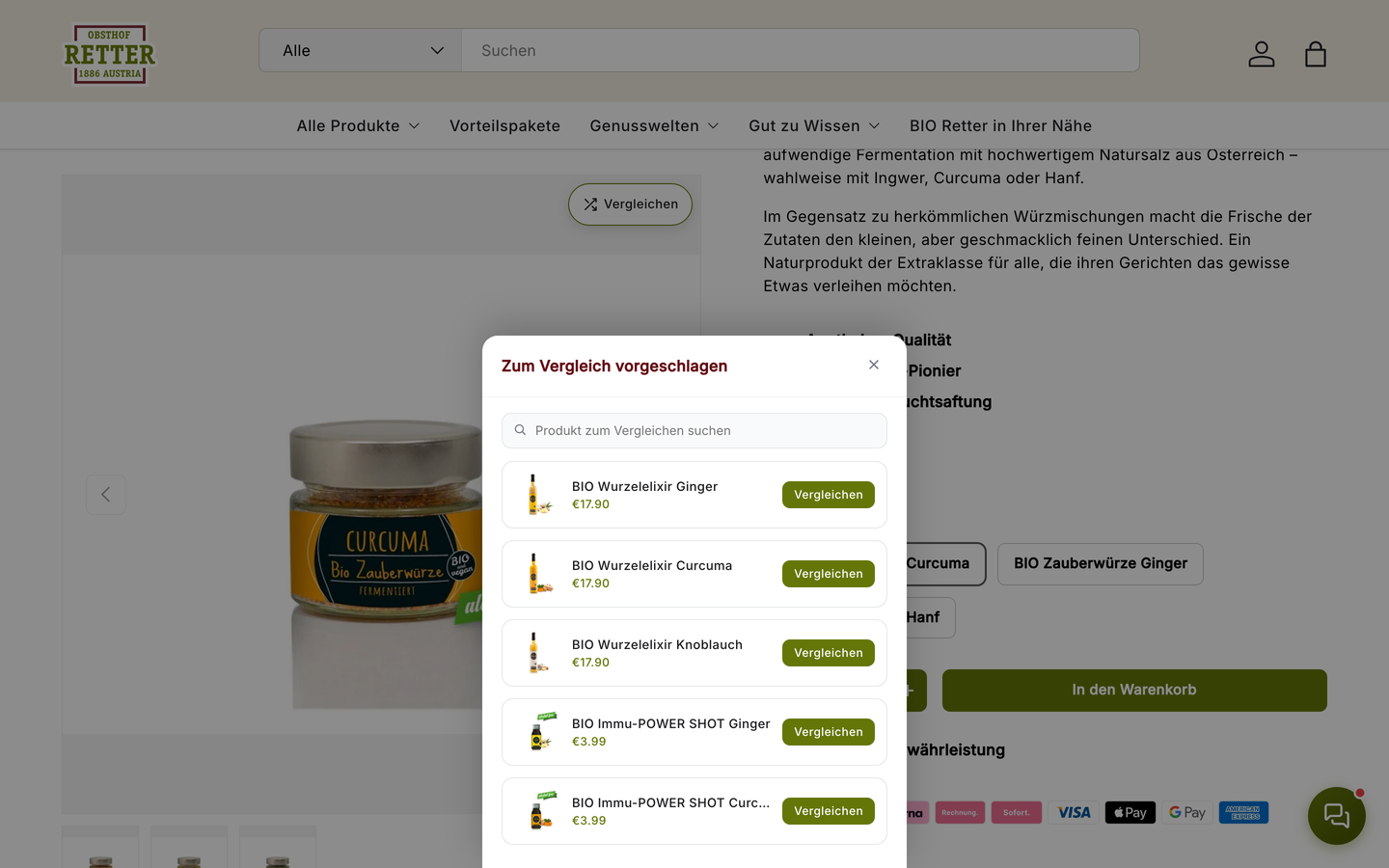
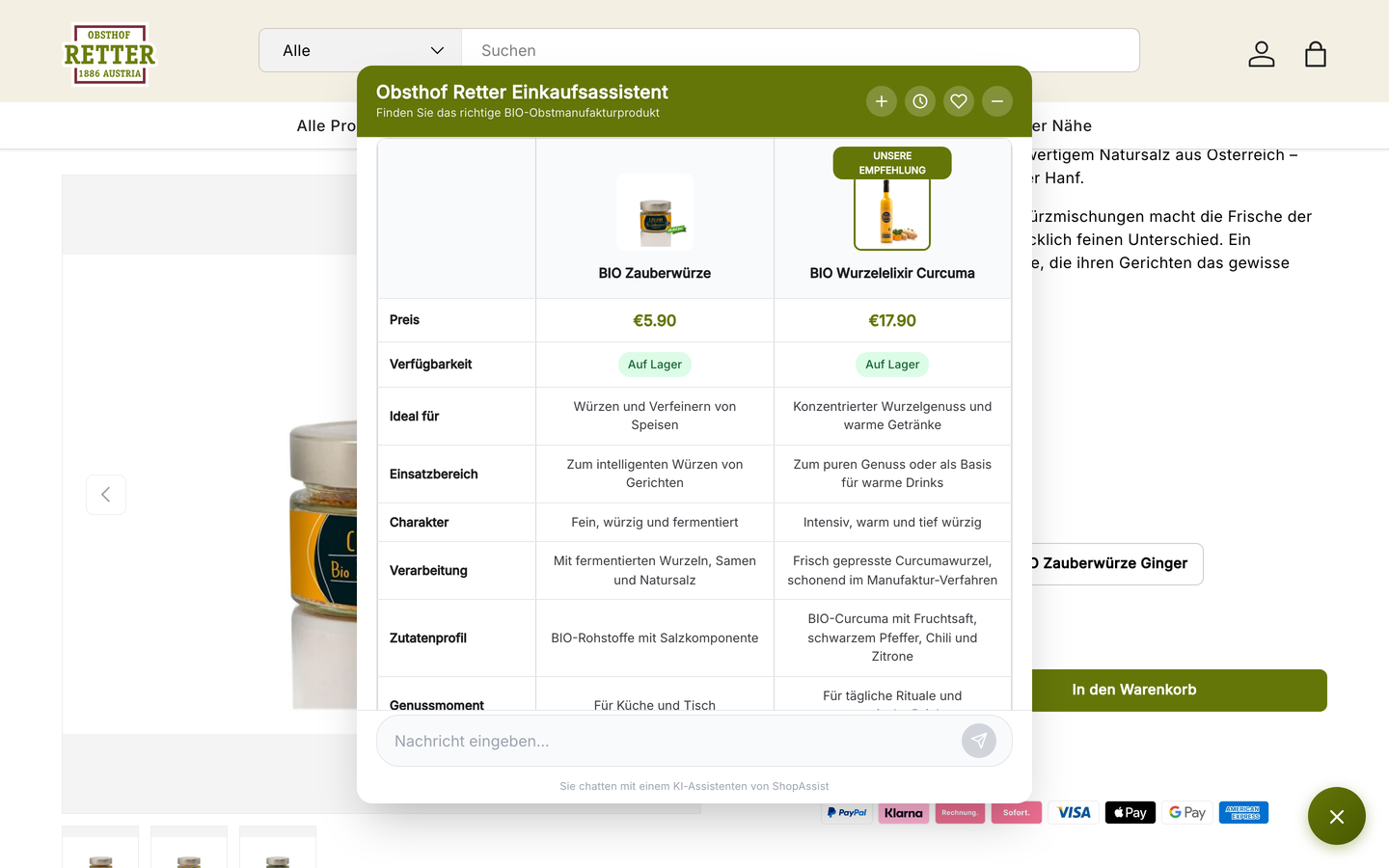
- On a product page, Compare opens a panel of similar products, with a search field for any other. The shopper picks one, and the chat opens with the two side by side and a recommendation.
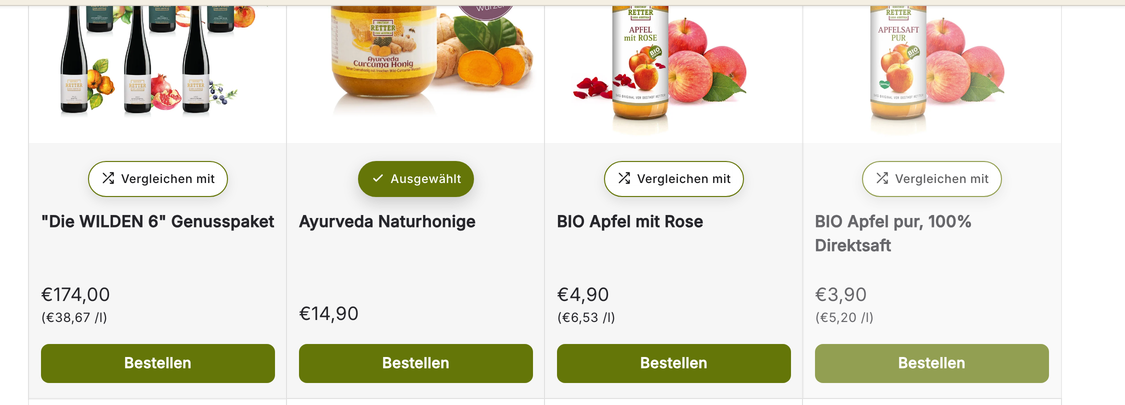
- In a listing, the first click marks that card Selected, and every other card's button changes to Compare with. A click on a second card opens the comparison. Clicking the selected card again clears it.
Troubleshooting
| Symptom | Cause | Resolution |
|---|---|---|
| No Ask ShopAssist or Compare button (PDP) under Apps | The template is not a product template | Select the Product template first |
| Compare on the product page but not in listings | Show on list pages is off in the app embed | Switch it on under App embeds → Shop Assist → Comparison |
| Compare buttons on some cards only | The theme's cards are not detected | Set the card selector in the Comparison settings |
| No widget, pills or Compare at all | The Shop Assist app embed is off | Turn it on under App embeds |
For pills or a Compare button missing on every platform, see the shared troubleshooting.
Last updated on